
Telegram Bot Setup Guide
A comprehensive guide to creating and configuring a Telegram Bot to connect with your OpenClaw AI assistant
Create a Telegram Bot
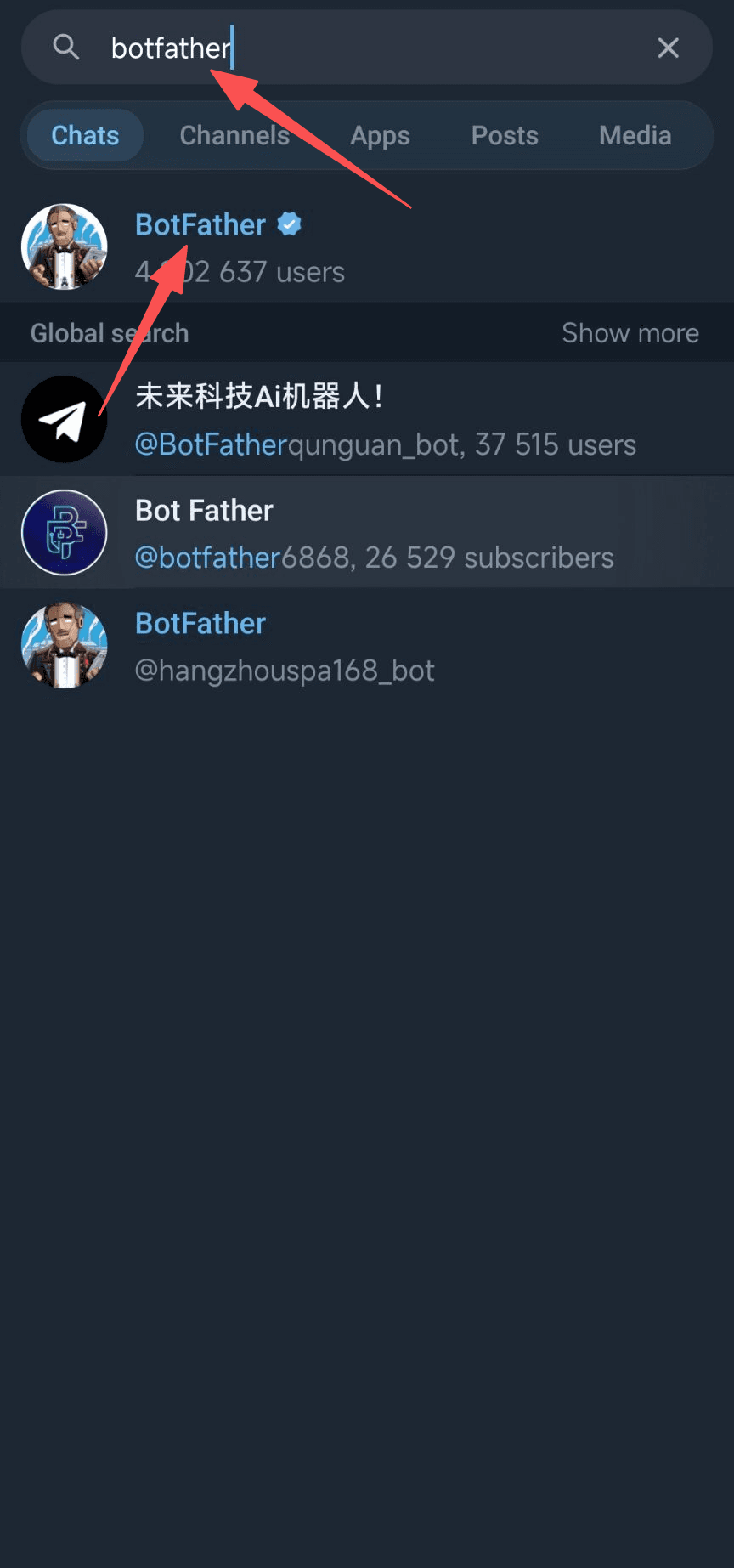
In the Telegram search box, type 'botfather' and click on the official BotFather with the blue verification mark (showing approximately 4.9 million users). This is Telegram's official bot management tool.
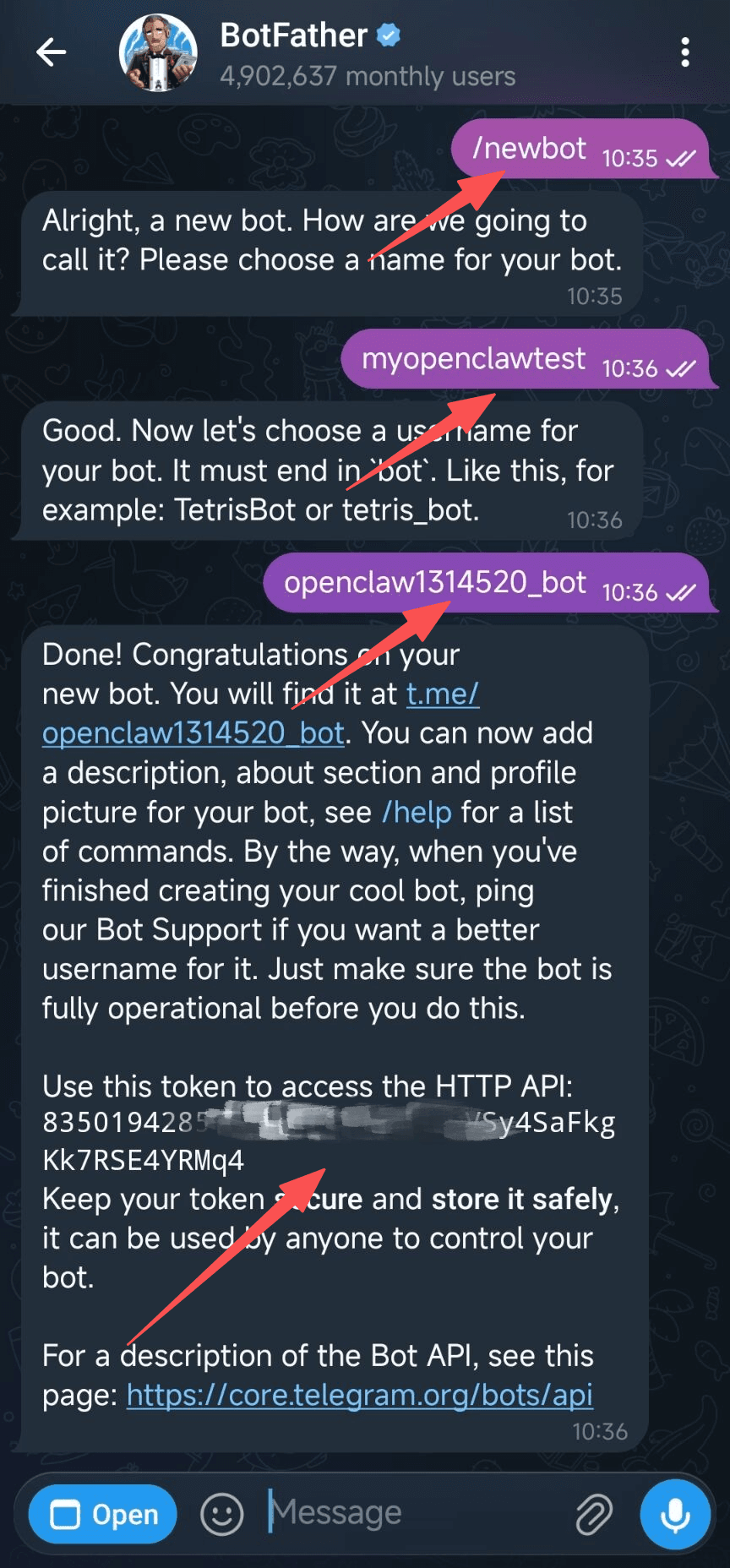
In the conversation with BotFather, follow these steps: 1️⃣ Send /newbot command 2️⃣ Enter bot display name (e.g., myopenclawtest) 3️⃣ Enter bot username (must end with bot or _bot, e.g., openclaw1314520_bot) 4️⃣ Upon successful creation, BotFather will return your Bot Token (format: 835019428:XXXXXX_XXXXXXXXXXXXXX) ⚠️ The Bot Token is sensitive information, equivalent to your bot's password. Keep it safe and never share it! Copy this token for the next configuration step.
Configure in OpenClaw
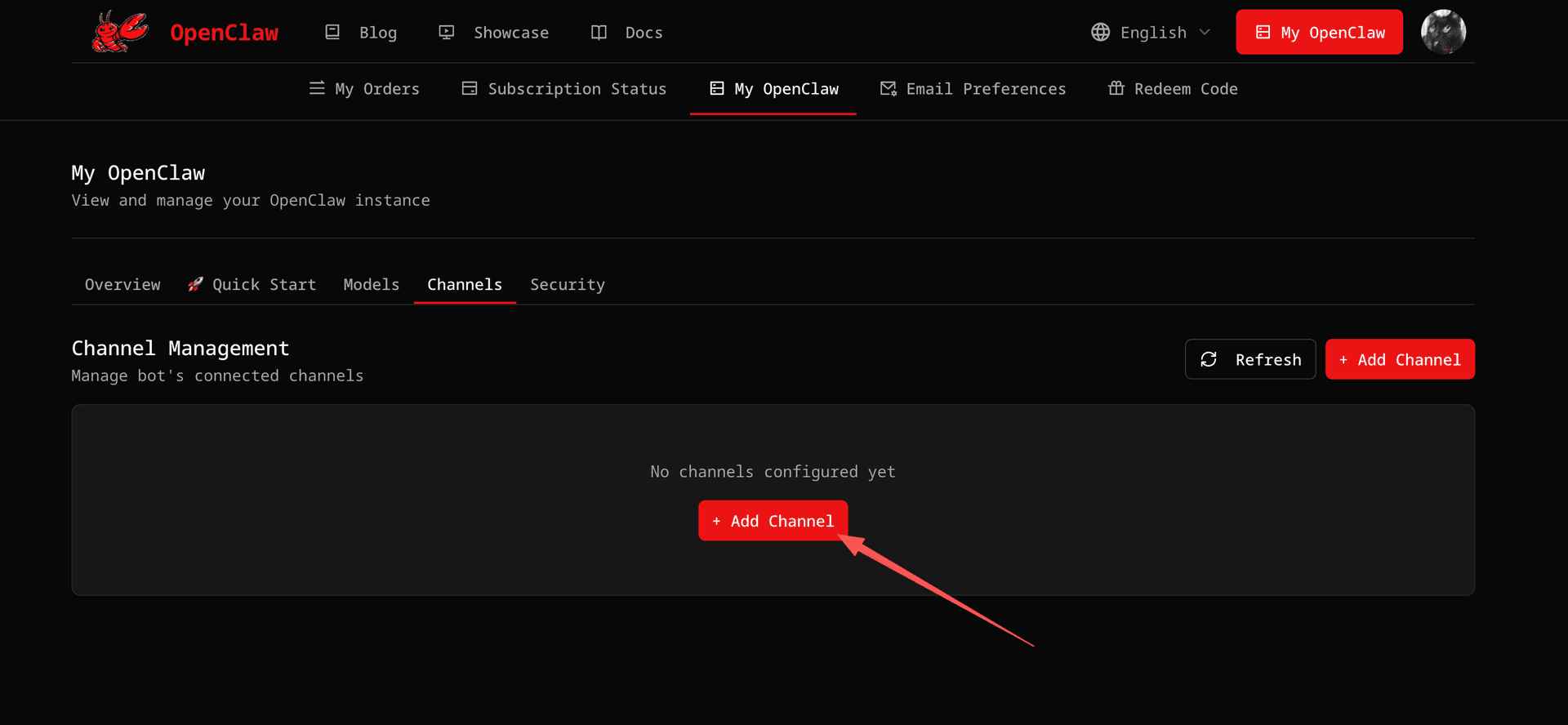
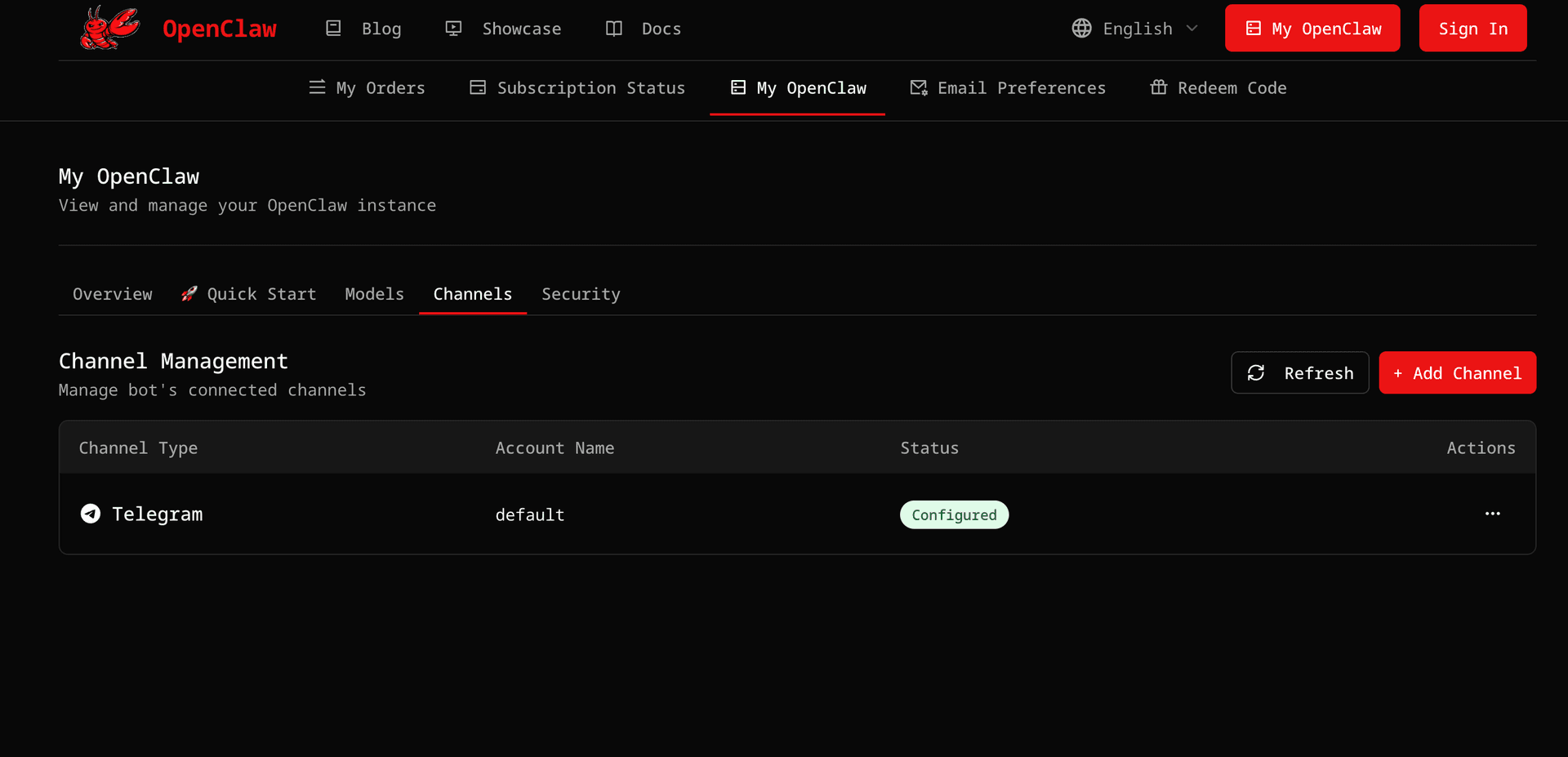
After logging into your OpenClaw account, click 'My OpenClaw' in the top navigation bar to access the console. In the console, switch to the 'Channels' tab, then click the '+ Add Channel' button in the center or top right corner.
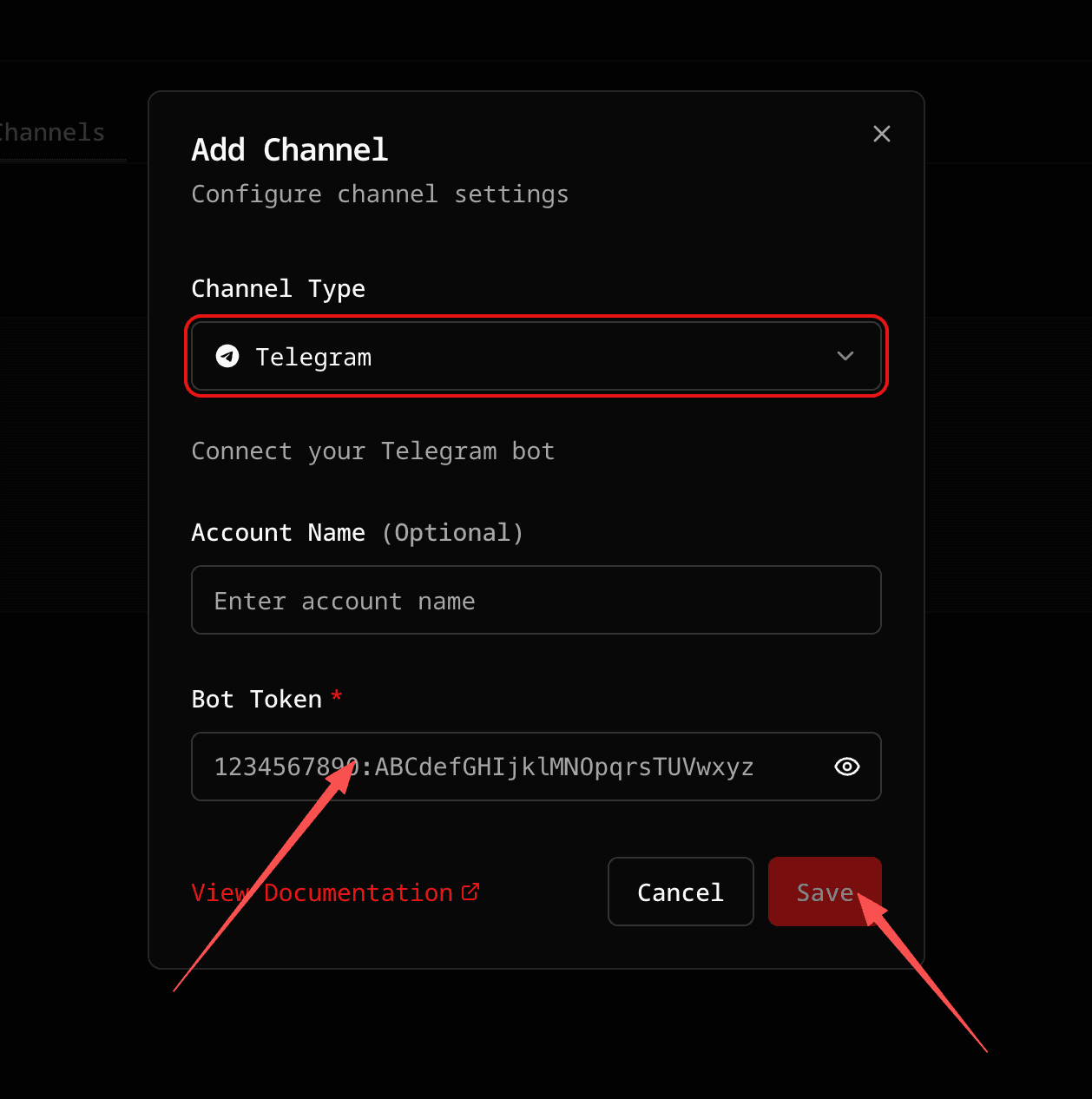
In the 'Add Channel' dialog that appears: 1️⃣ Channel Type: Select 'Telegram' 2️⃣ Account Name: Optional, can be left blank 3️⃣ Bot Token: Paste the Token you obtained from BotFather in step 2 Once completed, click the red 'Save' button in the bottom right corner.
After clicking save, the system will automatically configure your Telegram Bot. The OpenClaw Gateway will restart in 3 seconds to apply the new configuration. Once successfully configured, you'll see the Telegram channel in the Channels list with a status of 'Configured'. ⏱️ The entire configuration process usually takes 5-8 seconds. Please wait patiently for the Gateway to complete the restart.
Test Your Bot
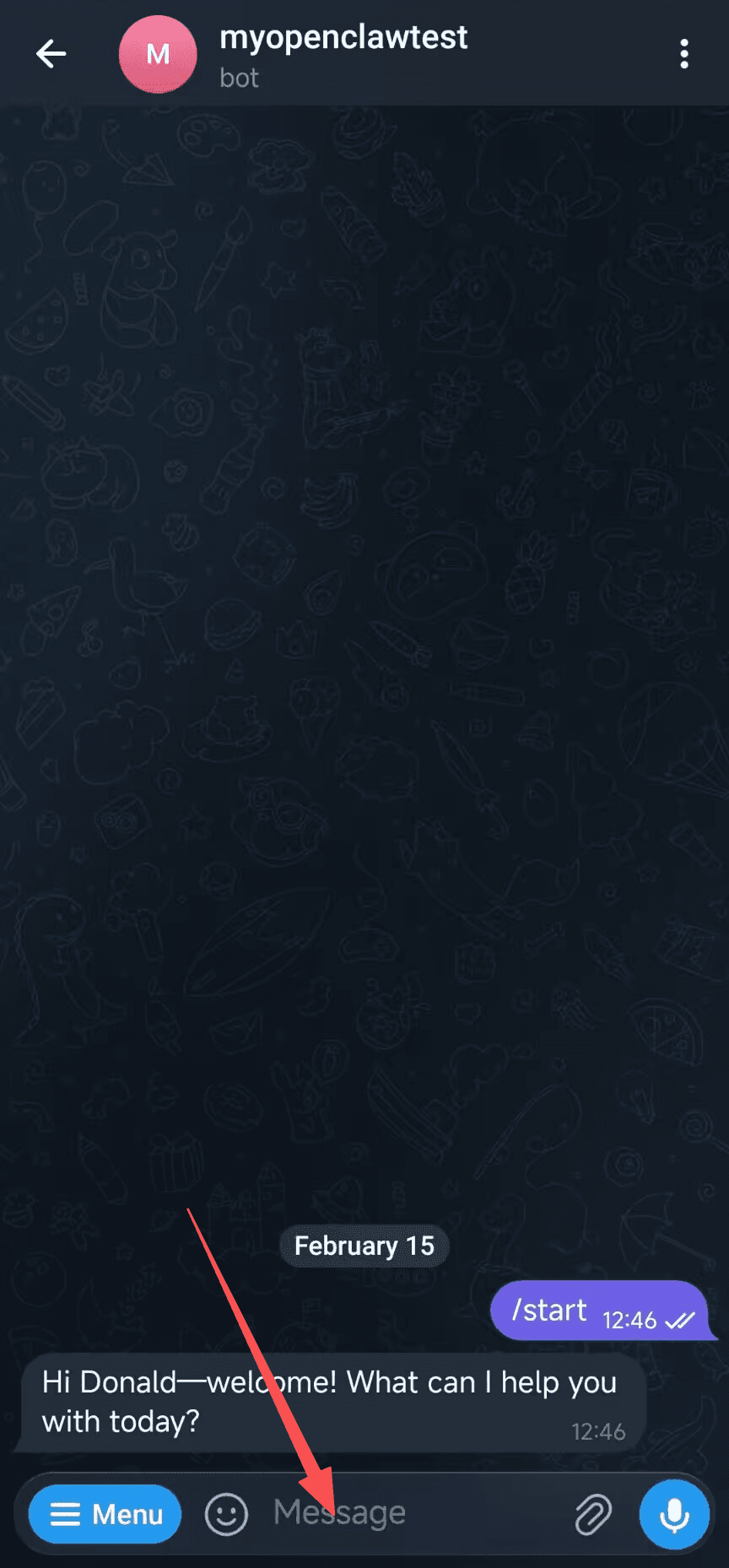
Return to Telegram and click the bot link in BotFather's message (e.g., t.me/openclaw1314520_bot), or search for your bot's username. Once you open the chat, click the 'Menu' button at the bottom or send the /start command directly. The bot will immediately reply with a welcome message. You can also send any question (like 'Hello' or 'Tell me about yourself'), and the bot will respond based on the AI model you configured. 🎉 Congratulations! Your Telegram Bot is now successfully connected to OpenClaw. You can now chat with your AI assistant in Telegram anytime. 💬 The bot uses 'open' mode by default, allowing anyone to chat with it.
⚠️ Important Notice: By default, the Telegram Bot's DM Policy is set to open mode, which means anyone can chat with your bot and potentially consume your API quota quickly. How to Improve Security? If you want to restrict who can use your bot, you can change the DM Policy to pairing mode in the OpenClaw Gateway WebUI: 1️⃣ Visit your Gateway WebUI (e.g., https://xxx.open-claw.org) 2️⃣ In the configuration, find the Telegram channel settings and change dmPolicy to "pairing" 3️⃣ After saving the configuration, new users will receive a pairing code (e.g., ABC123) when they first chat with the bot 4️⃣ In the OpenClaw WebUI Chat box, enter the following command to approve the user: openclaw pairing approve telegram <pairing-code> For example: openclaw pairing approve telegram ABC123 ✅ Once approved, the user can use the bot normally. This effectively controls who can use your bot and prevents abuse and quota waste.
You can now chat with your AI assistant in Telegram. If you have any issues, check the documentation or contact support.
Need Help?
For detailed information, visit the official Telegram Bot API documentation
View Documentation